AirPlay receiver for Fire TV
Mirror your iPhone or iPad to your Fire TV
Mirrorlark turns your Fire TV or Fire Stick into an AirPlay receiver. Share your screen, photos and music on the big screen, straight over your home Wi-Fi.

Start mirroring in three steps
-
Same Wi-Fi
Open Mirrorlark on your Fire TV and connect your iPhone or iPad to the same Wi-Fi network.
-
Control Center
On your iPhone or iPad, swipe down from the top-right corner to open Control Center.
-
Choose "Mirrorlark"
Tap Screen Mirroring and choose "Mirrorlark". Your screen and its sound appear on the TV.
Everything you need, nothing you don't
-
Screen mirroring
Show your iPhone or iPad screen on the TV, with sound: photos, presentations, games and apps.
-
Music and audio
Send music from your favourite apps to the TV or sound system, and control the volume from your phone.
-
Optional PIN
Turn on a PIN for new devices, so only people you choose can mirror to your TV.
-
Five skins
Midnight, Ember, Aurora, Paper or Arcade: pick the look of the app's own screens.
-
No ads
Nothing pops up over your screen. Ever.
-
No subscription
Pay once and Mirrorlark is yours. No monthly fee, no account to create.
Five skins, one tap away
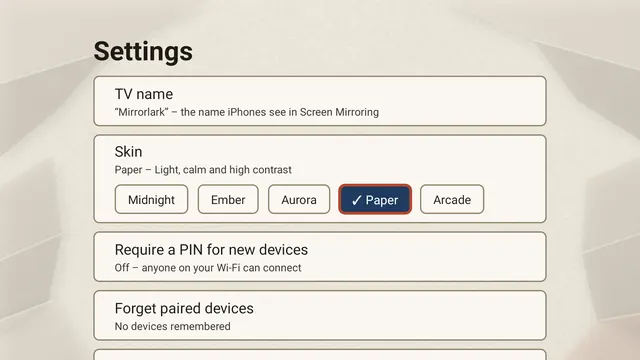
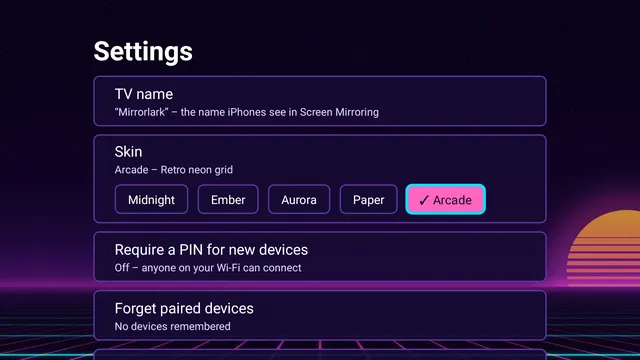
A skin changes the backgrounds, colours and highlights of Mirrorlark's own screens. It never covers or tints what you mirror. Choose one in Settings > Skin.
-
MidnightDeep blue night with quiet stars -

EmberWarm glow and drifting sparks -

AuroraNorthern lights over a dark sky -

PaperLight, calm and high contrast -

ArcadeRetro neon grid
Made for the TV across the room
Stays on your Wi-Fi
Your iPhone or iPad talks straight to your Fire TV. No accounts, no tracking, and nothing you mirror is recorded or sent over the internet.
Read the privacy policyTry it free. Keep it for $0.99.
Free trial
30 minutes
of mirroring, with every feature. No payment details needed.
Unlock forever
$0.99
one time, bought through the Amazon Appstore. No subscription, no ads.
Your unlock comes back after a reinstall, and on any Fire TV signed in to the same Amazon account.
What you need
- A Fire TV, Fire TV Stick, Fire TV Cube or Fire TV smart TV on Fire OS 8 or newer
- An iPhone or iPad
- Both on the same Wi-Fi network
Check your Fire OS version in Settings > My Fire TV > About.
Common questions
Which Fire TV devices does Mirrorlark work on?
Mirrorlark needs a Fire TV running Fire OS 8 or newer. That covers recent Fire TV Sticks, Fire TV Cubes and Fire TV smart TVs. To check yours, go to Settings > My Fire TV > About on the Fire TV.
Fire TV models that run Vega OS instead of Fire OS can't run Android apps, so Mirrorlark isn't available for them.
How much does Mirrorlark cost?
You can try it free for 30 minutes of mirroring. After that, one payment of $0.99 (or the equivalent price Amazon shows in your currency) unlocks Mirrorlark forever. There is no subscription and there are no ads.
Does my screen go over the internet?
No. Your iPhone or iPad sends the picture and sound straight to the Fire TV over your own Wi-Fi network. Mirrorlark has no accounts, no ads and no tracking, and nothing you mirror is recorded or saved. See the privacy policy.
Your iPhone, on the big screen
Try Mirrorlark free for 30 minutes of mirroring.
Get it on the Amazon Appstore Coming soon